
Free Fire Font Generator
Create stylish Free Fire names, pro nicknames and gaming fonts. Type your name and copy your favorite design instantly!
Tap any symbol to add it to your name.
A free fire font generator turns an ordinary nickname into copyable text with Unicode styling, without requiring design software or installed font files. Compare styles in an instant preview before using your name in-game confidently.
From gothic lettering and small caps to bubble text, mirror text, or star decorated text, the generator offers a way to test identity carefully; choose readable characters because device support and game filters vary widely.
Table of Contents
What Is a Free Fire Font Generator?
A Free Fire font generator converts stylish Unicode text characters into a unique gaming appearance for a Free Fire name, clans, or gaming profiles, without requiring design software on any device with minimal setup.
Instead, a web based online tool adds symbols and decorative Unicode styles to typed text; users compare previews, choose a readable style, then copy and paste the result into compatible game fields before saving it.
How To Use The Free Fire Font Generator
To begin, enter your Free Fire nickname or guild name in the text box. The live preview lets you compare stylish fonts before choosing a design that suits your gaming identity and your personal style.
After selecting, press the copy button for your favorite result, then paste it into the in-game name field. Check supported characters carefully; some Unicode characters may not display consistently on every device or game version.
Also Read: Powerful WhatsApp About Text Generator
Type Your Text
Begin with a text input and type your text exactly as you want it displayed; a nickname, guild phrase, or short identity line gives the fancy text generator a useful starting point for careful styling.
Before choosing an effect, check the wording for spelling, spacing, and unwanted symbols. Accurate typing helps the generator create cleaner previews, making it easier to compare styles without changing your intended nickname inside the game.
Pick a Style
A good selection begins with legibility, not decoration. Clean Unicode styles and short nicknames are easier to scan, while reads fast matters when squadmates spot your identity during crowded matches on smaller phone displays too.
Try bracket wrappers only after checking the core name; extra marks can weaken clarity. Compare different designs in the actual game field, then keep the version that remains readable at a glance during quick play.
Copy & Paste
After choosing a design, click the matching option to place the generated result on your device clipboard. Compare each fancy text with its corresponding text before copying, especially when several styles appear together on screen.
Once copied, paste the Unicode character anywhere you need it, such as Facebook, Twitter, Instagram, WhatsApp, or a website. The copied text should appear immediately, though each platform may display symbols differently on different devices.
Step 1: Type Your Text
Enter your Free Fire name before exploring decorative options; a clan name or username works too. Starting with the exact wording helps you judge spacing, length, and readability before styling for your game profile later.
Try a short phrase first, then convert it into a stylish gaming design once the original text is correct. This makes unusual letters easier to compare and reduces mistakes when entering names in-game on mobile.
Step 2: Copy Fancy Text You Like
Compare each favorite style beside your original name before choosing; the instant text preview helps you inspect letter spacing, symbols, and visual balance at normal size, without committing to a change before using it in-game.
After selecting Free Fire text, copy only the version that suits your nickname or guild text. Paste it into the intended field, then review the result on your device before saving changes inside the game.
Step 3: Paste Fancy Text Anywhere
After copying your fancy text, paste it into a text input, such as a Free Fire name field, profile, or bio. Check the preview before saving, then confirm placement across devices and supported apps carefully.
Reuse the Unicode text across Instagram, TikTok, Discord, and WhatsApp, or add it to other social media spaces. Test each destination first, because devices and apps can display decorative characters differently on older phones too.
Type Your Nickname or Guild Text
Enter the exact wording your group wants others to recognize, especially when preparing recruitment names for listings. Keep spelling consistent, limit decoration, and choose a version members can identify quickly during busy matches at speed.
Before saving, inspect each character in the entry area and verify that the finished wording stays clear. Compact arrangements often remain easier to identify across crowded screens and fast-moving team activity without repeated decorative marks.
Pick A Readable Battle-Ready Style
A dramatic nickname can still fail in live matches: prioritize one strong font style, verify the core styled name against mixing Unicode alphabets, and test whether the field rejects text before saving your chosen version.
I check missing characters and empty squares on the actual device, then balance outer symbols with a decorative line; subtle contrast and clean wrapping often make the tag easier to scan when teammates need to identify you quickly.
Copy, Paste, and Preview in Game
After selecting a design, use one click to copy and paste your chosen styled text into Free Fire. Keep the transfer fast and simple, then check spacing before confirming your nickname inside the live game.
Treat the game field as the final test: preview your name in the lobby, inspect Unicode characters and decorative accents, then save only when every mark displays clearly on your device during an actual match.
Where Can You Use Free Fire Fonts? / Best Uses
Your Free Fire nickname can carry a consistent identity beyond battle: use copy-and-paste fonts in gaming profiles, Discord, and TikTok, then reuse a clean name style where Unicode supported text appears across public social spaces.
For teams, compact guild labels and squad tags make limited space easier to manage; short messages, bio hooks, and MVP phrases suit streamer names, while restrained style keeps busy match communication clear in team chats.
Stylish Free Fire Nicknames
Build a personal look by using a fancy font to convert normal text into a unique nickname; this makes ordinary usernames more noticeable and gives your gaming identity a clearer visual signature inside busy lobbies.
A bold look is not always best: choose readable styling so other players remember your memorable clan name or team name, using your gaming profile and social media to stand out across busy match screens.
Guild Names and Clan Tags
Guild names should remain readable in crowded lobbies, where guild tags help teammates recognize a team quickly. Choose shorter, cleaner styles, then test decorative characters before saving your guild identity on smaller screens during matches.
Clan tags work best as compact identity markers, not crowded artwork. I favor a bold first-letter treatment with one restrained symbol; check strict fields and safer settings, then preview before confirming your name in game.
Also Read: Discord Fonts: Rule Every Server
Chat And Profile Lines
Chat lines do not need elaborate decoration to feel distinctive; a short chat text style with clean symbol styles can keep squad messages readable while adding personality to profile bios and an FF nickname online.
Profile lines often introduce a player before a match begins, so use a short bio, clear clan information, or a concise recruitment line; reserve heavier decoration for gaming profiles where space allows without hiding meaning.
Gaming Identity Across Platforms
Treat a Free Fire nickname as short identity text, not merely decoration: consistent spelling lets teammates recognize you across supported platforms, whether they meet you in a game lobby or community discussion later online again.
Modern gaming profiles may connect a blog post, forum message, or status to the same player; keep your core spelling stable, then adjust symbols and spacing to match each platform’s display limits and conventions consistently.
Why Use Free Fire Fonts?
Distinctive styling gives a player’s nickname a recognizable identity, helping a gaming personality feel consistent across matches, squads, and profiles. A readable core name keeps recognition easy without relying on excessive decoration or visual clutter.
Choose restrained lettering for tight interfaces, or darker designs when a squad wants intimidating names. Thoughtful styling can strengthen clan and team names, while keeping the gamer tag recognizable during fast gameplay and chat sessions.
Free Fire Font Styles
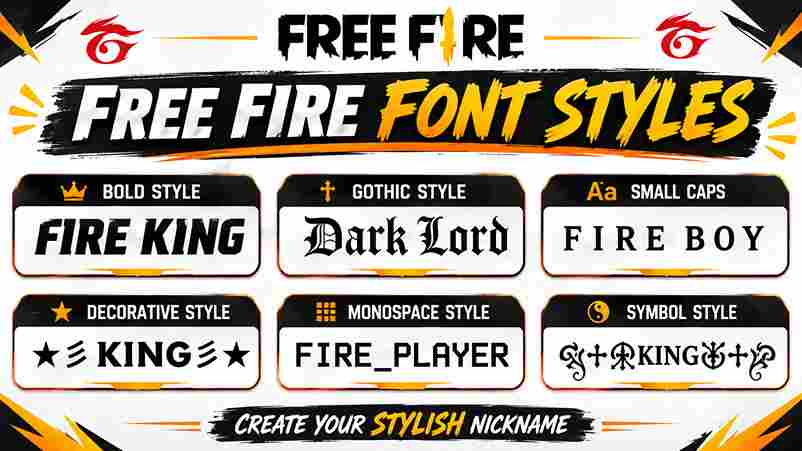
Bold sans, gothic fonts, small caps, and monospace each signal a different gaming mood. Choose compact lettering for guild tags, or add clan identity markers when a player label needs stronger recognition in busy lobbies.
Light fire and star accents can energize a short name, yet repeated symbols and clutter reduce readability. Test tactical names in monospace for a technical look on squad labels, checking the field before saving changes.
Bold Name Fonts
Bold name fonts give a Free Fire nickname stronger visual weight without changing its wording. I usually compare name fonts beside a plain version before choosing one for a profile or squad identity and readability.
Choose stylish fonts with clear strokes when your username appears in compact name fields; ornate lettering may look impressive in previews yet lose definition on smaller devices after major game updates across varied screen sizes.
Gothic And Dark Styles
Gothic lettering can establish a darker visual identity in Free Fire, but elaborate forms are not automatically effective. Choose gothic designs for a deliberate mood, keeping each character recognizable within compact name spaces during matches.
A darker look should still function in the lobby: pair decorative characters with plain lettering, avoid dense symbols, and preview the result before choosing a final identity for your squad, rather than chasing complexity alone.
Small Caps Names
Small caps names can look distinctive without adding decorative clutter to a Free Fire identity. Compare 𝐀𝐁𝐂 with your usual lettering, then judge whether its compact proportions suit your chosen handle during competitive play sessions.
Do not assume every small-cap character displays consistently: some interfaces substitute missing glyphs or alter spacing. Preview the complete name inside the game, check legibility at a glance, and simplify any awkward sequence before saving.
Fire And Star Wrappers
A fire wrapper should frame the nickname, not bury it: place a slim bracket on either side and use one star as the focal accent. This keeps the name readable inside the lobby for teammates.
For a distinctive profile, combine modest symbols with balanced decorative designs; oversized frames and repeated marks can become cluttered on smaller screens. Test the pasted version before saving your updated identity in the live game.
Monospace And Code Styles
Monospace styles are not necessarily installed fonts; they are usually Unicode character standards arranged to imitate fixed-width lettering. Their numeric code points define symbols, while text fields determine how each game interface displays them correctly.
Code-inspired names can look sharper than ornate lettering when a player wants a restrained identity. Try square text or boxed text sparingly, then copy and paste the result; inspect your profile carefully in-game before saving.
Also Read: Twitter Font Generator: Bold Magic
Unicode Symbol Accents
Unicode symbols can sharpen a Free Fire identity without overwhelming its letters. A practical setup uses one or two accents, testing a clean name first so the player tag remains readable in every squad match.
Decorative marks such as ꧁ ꧂, 亗, ツ, and ★ may render differently, so preview each symbol frame on almost every phone before using it in a real Free Fire profile during live matches.
Tips, Compatibility & Troubleshooting
Test each styled nickname in the game field first; Unicode support, the operating system, and app version can affect unfamiliar characters across a player’s screen during matches, practice, and lobby checks on different phone models.
If a character appears as a square glyph, compare the rendered output on a second screen and reduce decoration. Visual differences are expected, so test a clean style before purchasing a Rename Card for it.
If a Symbol Shows as a Box or the Name Is Taken
A symbol displayed in boxes usually means the receiving device or app cannot render that Unicode character. Replace it with ordinary characters, test a short version, and check compatibility before applying your renamed nickname in game.
A name being taken is separate from symbol support. Try distinctive nickname ideas, remove a symbol, adjust letters, or add a brief clan tag; then review the counter and 12 characters limit before final confirmation.
Also Read: Free Fire Official Website
Conclusion
Recognition matters more than ornament. A Free Fire Fonts Generator can create unique nicknames, yet game filters and supported characters decide what survives. Before a costly name change, compare previews with your original normal name.
My practical rule: keep decoration light. one-click copy speeds experimentation, but device differences and app updates can change results. Test clan names carefully, avoid protected logos, and save a readable backup before committing any changes.
Are Free Fire Fonts Free to Use?
Free describes the generated Unicode text style: designs can be copied and shared, with no fees or no limits imposed by this generator. However, changing your Free Fire nickname might require an in-game rename item.
Is This Free Fire Font Tool Free?
Yes, this tool is free to use: explore different styles, choose your favorite design, and copy the text instantly. There’s no downloading an app or creating an account; experiment whenever you want, without extra steps.
Are These Fonts Free to Use?
Yes, these styles are always free to create and reuse. The free tool needs no sign-up and no download. Still, test symbols inside Free Fire before saving; some characters may display incorrectly on older devices.
What Is Fancy Text Generator Free Fire Game Tool?
Unlike installed lettering packages, a web based tool reshapes ordinary phrases through decorative Unicode. I prioritize legibility when evaluating team name designs: unusual glyphs can fail inside game menus despite looking completely correct during previews.
What Are Free Fire Fonts?
Free Fire fonts are decorative text forms rather than installable files. Players personalize nicknames using wide text, tiny text, and accents. In practice, simpler designs display more reliably across profile screens than heavily ornamented alternatives.