
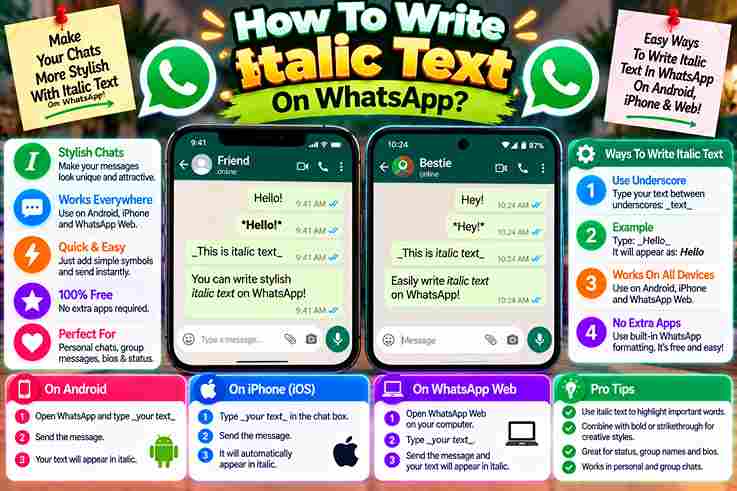
Most people discover italic text only after a plain WhatsApp message fails to call attention to a detail. In my experience, subtle emphasis helps important information feel organized without making a conversation look overly designed.
Instead of changing settings, users simply wrap particular parts of text with an underscore on both sides. The selected text appears in italics, guiding the reader’s eye toward critical facts, headings, phrases, or post-script notes.
Table of Contents
How To Make Text Italic On WhatsApp
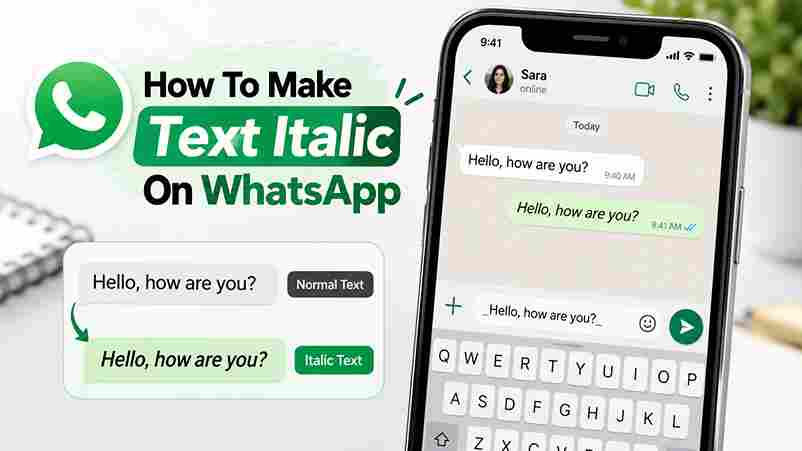
On WhatsApp, type out your message, placing an underscore on both sides of the text. Keep underscores directly adjacent, with no spaces, so the selected words appear in italics before you send it confidently today.
From experience, I preview the chat window because misplaced formatting characters can leave text unstyled; formatting options make important information quick to read, keep messages easier to scan, and help every recipient recognize emphasis immediately.
Bold – With Asterisks
From practical experience, bold text works best when a single asterisk is placed before and after a chosen passage. On WhatsApp, this simple method helps highlight important information without making the whole sentence visually heavy.
For example, typing New Opening Hours between matching symbols makes the phrase display prominently. I usually reserve this styling for headings or certain words, because excessive emphasis can weaken the reader’s eye and reduce clarity.
Also Read: Why Does My Fancy Text Show Boxes Instead Of Letters
Strikethrough – With Tildes
From experience, strikethrough text works best when correcting outdated details without deleting context. Place a tilde on both sides of the wording; once you send the message, readers immediately recognize previous information as clearly revised.
For business opening hours, I often retain the old schedule with a strikethrough effect, then place updated details beside it. This approach helps businesses illustrate changes in contact details, changes of staff, or seasonal offers.
Many Messaging Apps Support Formatting
From daily testing, I’ve noticed many messaging apps treat classic text formatting as a clarity tool, not decoration. Their formatting options help users organize chat messages, separate context, and keep written messages readable during conversations.
WhatsApp keeps formatting practical through special characters, while other platforms use toolbar controls or shortcuts. In my experience, formatted text protects reader’s attention, and third-party solutions expand styling when a chat window offers limited choices.
Also Read: Bold Text Generator
What Is Text Formatting On WhatsApp Business?
From managing customer conversations, I’ve learned that text formatting in WhatsApp Business is less decoration than navigation: bold text, italics, and strikethrough help readers locate important information, offers, and updates before attention shifts elsewhere quickly.
Practically, careful format text choices let a WhatsApp Message feel structured without becoming a wall of text. I often combine emphasis with emojis, keeping each message clear, engaging, and aligned with a brand’s personality naturally.
How To Format Text On WhatsApp And WhatsApp Business
In practical client-chat reviews during busy exchanges, text formatting makes WhatsApp Business messages easier to scan. Use bold, italics, strikethrough, or monospace font selectively, placing the symbols around relevant text before you send each message.
Rather than styling everything, highlight only important information: an Opening Hours change, price reduction, or short sale period. On a mobile device, press and hold text, then choose available formatting options from the context menu.
Also Read: How to Make Bold Text Without Installing an App Easy Guide
How To Make Text Bold On WhatsApp
In practice, bold text works best when a key instruction appears instantly. On WhatsApp, type out the phrase, place an asterisk at the beginning and end, then send without spaces around either marker for clarity.
I often format text this way for deadlines, totals, or warnings because the effect remains clear without changing the entire style. If it fails, check both asterisks, correct the typing, and send messages again confidently.
How To Strikethrough Text On WhatsApp
From professional experience, I’ve learned that correction feels clearer when you place tildes around a relevant word rather than deleting it. WhatsApp then shows a wavy line, preserving context while signaling an intentional visible revision.
To apply it, write one tilde before and another after the wording, keeping both symbols tight against the letters. I usually preview the sentence first, because excessive strikethrough can confuse readers instead of clarifying revisions.
How To Format Text As Monospace Font On WhatsApp
In practice, monospace fonts work best when sharing codes, references, or aligned details. Place three backticks on either side of the chosen block of text; WhatsApp then presents characters with consistent spacing throughout each line.
I have found this format especially useful in WhatsApp Business replies, where order numbers must remain easy to understand. Unlike decorative fonts, this method uses simple formatting characters, reducing confusion while keeping technical information readable.
Rules For Formatting Text On WhatsApp
Start by placing the Characters directly around the intended phrase: an underscore for italics, an asterisk for bold, a tilde for deletions, or three backquotes for fixed-width text; avoid inserting a space inside these markers.
Before sending, preview the style in the app. Apply formatting only where needed, keep paired symbols on either side, and verify every marker disappears; from experience, stray symbols usually reveal misplaced spacing or incomplete pairs.
Also Read: The Science Behind Stylish Fonts And Unicode Characters
Can I Add Other Text Styles To My WhatsApp Messages?
Beyond italics, WhatsApp lets you combine other text formatting to shape hierarchy. Use bold for priority, Strikethroughs for corrections, and fixed-width styling for code, helping readers visually differentiate sections without cluttering chats in business conversations.
An approach is to select options by purpose: emojis or little hearts add warmth, while animal symbols and smileys soften tone. Keep styling intentional; excessive decoration can bury information and weaken otherwise clear business communication.
Why Format The Text Of Your WhatsApp And WhatsApp Business Messages?
Formatting helps readers read and understand key points before distractions win. With attention spans growing shorter, structured emphasis can break up longer WhatsApp messages, making lots of information feel deliberate rather than crowded or missed.
My working rule is simple: formatting should guide, not decorate. Bold emphasis choices prevent bland messages from feeling flat, while consistent presentation across marketing channels reinforces identity and helps communication consistently hold your reader’s attention.
Also Read: Italic Text Generator – Transform Your Text with Italic Magic Instantly
Make Your Messages Clearer
Clear formatting makes WhatsApp updates easier, faster, and simpler to scan. In my experience, selective italics emphasise certain words, helping readers identify urgency, instructions, or context without rereading an entire conversation several times later again.
Clarity improves when formatting directs attention instead of decorating everything. Use italics to draw focus toward one part of a message, while surrounding details fade out naturally, so customers understand requests quickly and respond easily.
Hold Your Reader’s Attention
In my experience, Italic emphasis works best when a reader must notice one detail without feeling shouted at. Within WhatsApp chats, selective text styles create visual pauses, helping important phrases feel intentional, clear, and memorable.
I have found that a restrained styling option often holds attention longer than constant decoration. Use italic text to spotlight one deadline or instruction, then return naturally; the visual contrast preserves clarity and reader interest.
Also Read: How to Copy and Paste Fonts in Seconds
Reinforce Your Brand’s Identity
From campaigns, I learned that a disciplined business comms strategy turns each WhatsApp Business account into a recognizable brand touchpoint. Consistent phrasing, a chosen font, and carefully repeated emphasis let customers recognize your personality instantly.
Instead of copying trends from social media apps, document approved wording on your website, then place it into every text box. This routine keeps both apps aligned, even when different team members manage customer conversations.
How Can I Set Up WhatsApp Business On My Phone?
Start with the practical Benefits: separate customer chats from personal ones. Next, visit your app store, install WhatsApp Business, verify a dedicated number, then restore only relevant backups so your workspace stays organized from day one.
During setup, write a concise business description, enter hours, location, catalogue items, and an email address. From experience, completing these details before messaging improves trust and makes daily replies easier across busy Messaging apps channels.
How do I make text italic on WhatsApp?
To apply italic formatting on WhatsApp, place a single underscore symbol (_) before and after your word or sentence. For example, typing hello converts the text into slanted italic style once sent. This formatting syntax works across WhatsApp’s chat interface on both Android and iOS devices, making it one of the simplest text styling shortcuts available in the messaging app without needing external tools.
Can I combine italic with bold or strikethrough text on WhatsApp?
Yes, WhatsApp supports combined text formatting by nesting multiple markdown-style symbols together. To create bold italic text, wrap your phrase using both asterisks and underscores, like example. Similarly, strikethrough formatting using tildes (~) can be layered in. This multi-style combination lets users emphasize key phrases, headings, or important chat messages with richer visual hierarchy in conversations.
Why isn’t my italic text working on WhatsApp?
Italic formatting often fails due to incorrect symbol placement, extra spacing, or using curly/smart quotes instead of straight underscores. Ensure there’s no space between the underscore character and your text, and that autocorrect hasn’t altered the symbol. Some older app versions or unsupported keyboard apps may also block proper markdown rendering, so updating WhatsApp usually resolves this formatting issue.
Does italic text work in WhatsApp group chats and broadcast lists?
Yes, italic text formatting functions identically across individual chats, group conversations, and broadcast lists since it’s a native WhatsApp text feature rather than a group-specific setting. This makes it useful for emphasizing announcements, highlighting instructions, or adding stylistic tone to messages sent to multiple recipients, regardless of chat type or participant count.
Can I use a font generator tool to create italic WhatsApp text?
Yes, an online italic font generator or fancy text converter can create Unicode-based italic characters that you copy and paste directly into WhatsApp, bypassing the need to manually type underscore syntax. These tools also offer stylish text alternatives, cursive fonts, and decorative Unicode symbols, giving users more creative formatting options beyond WhatsApp’s built-in styling commands.