
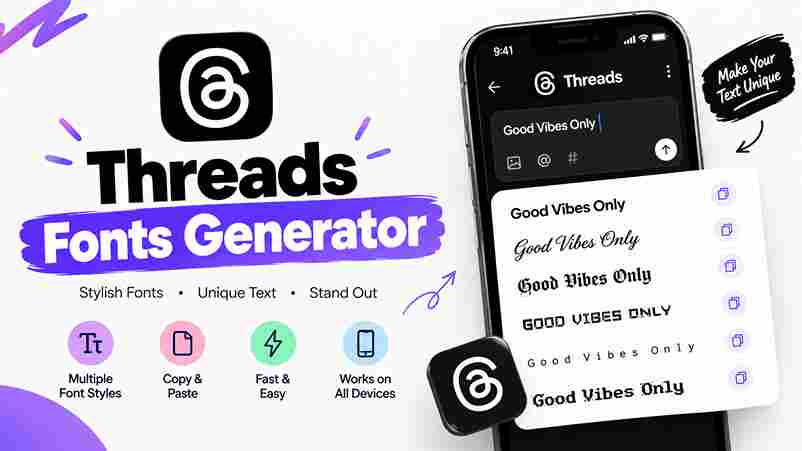
Threads Fonts Generator
Make your text stand out. Copy, paste & post.
Copy any style and paste it into your Threads bio, display name, post or reply. Your text stays in your browser.
Note: These are Unicode text characters, not installed fonts. Some styles may display differently across devices.
A no-cost typographic tool creates visual differentiation on the Threads platform, letting creators compare Unicode styles before choosing text that suits profile and audience without requiring installed font files for their own social presence online.
The useful result is not decoration alone: thoughtful emphasis can establish tone, reinforce a launch headline, or make profile lines more distinctive, while simple readable styles keep the message clear in fast-moving social feeds too.
Table of Contents
What Is A Threads Font Generator?
A Threads font generator transforms text into visually distinctive content using alternative Unicode characters. You type your text, select a style, and preview how it may appear on your Threads profile before sharing a post.
A free Unicode styling tool can add a scroll-stopping moment to a long-form thread, yet the Threads web client may render glyphs differently; distinguish these from native bold and keep essential meaning in words alone.
How To Use The Threads Font Generator
First, enter your Threads voice into the text field, whether shaping a bio line, profile opener, or brief reply. Watch available styles update live while comparing options before choosing a presentation that fits your message.
Then pick a style that suits the message, copy the result, and paste it into Threads. Preview it on mobile and desktop before publishing, because some decorative Unicode characters may render differently across devices sometimes.
Type Your Text
Use the input box to type text you intend to share, whether it belongs in a bio, post, reply, or short announcement. Clear wording gives the generator a useful basis for comparing styles before publication.
Before choosing effects, enter your input text as ordinary wording; then try Unicode options and compare the result. Copy and paste only after checking that names, punctuation, and the intended meaning remain clear on screen.
Also Read: Twitter Font Generator: Bold Magic
Pick A Style
Choose clean fancy styles only after deciding what the post must communicate. For tech posts, restrained decoration keeps instructions easy to follow, while thoughtful styling helps readers notice the core idea rather than decoration alone.
Use bold for emphasis when a short phrase needs priority; italic for commentary can soften an aside. Keep compact profile labels consistent with creator branding, and preview your chosen treatment on your device before publishing.
Paste Into Threads
After you choose a style, use the generator to copy the result, then paste directly into your Threads post, reply, or bio field. Preview the characters before publishing to confirm they display correctly on mobile.
For a display name, test several options in the preview and compare them at normal phone size. If letters appear as boxes, switch to a simpler choice before you save or share your final text.
Enter Your Profile Or Post Text
When you enter your profile or post text, keep the message complete before decorating it; styling holds together more naturally when the wording is direct and the purpose is easy to recognize at a glance.
Do not assume Threads would remove your wording; pasted characters can remain visible, although their appearance varies by device. Preview the result and confirm names, links, and the message stay recognizable before sharing it widely.
Choose A Style That Matches The Context
Choose a style according to each Threads update: editorial text can feel considered, while one or two variants keep a profile coherent. Use decorative treatment only when it strengthens the message and remains easily scannable.
Match tone with returning followers and keep a clear visual cue so people can recognize posts at a glance. Styling should support the message, not compete with clarity or make updates harder to follow naturally.
Copy, Paste, And Preview On Threads
Choose a style, copy output, then paste it into your Threads composer. Check the preview before publishing because unusual Unicode characters can render differently on mobile phones, tablets, and computers before sending it to everyone.
Review the post for broken links, altered mentions, and missing tags; preserve a plain text version of essential details. If characters look unfamiliar, choose a simpler style and preview the result again before you publish.
Threads Font Styles
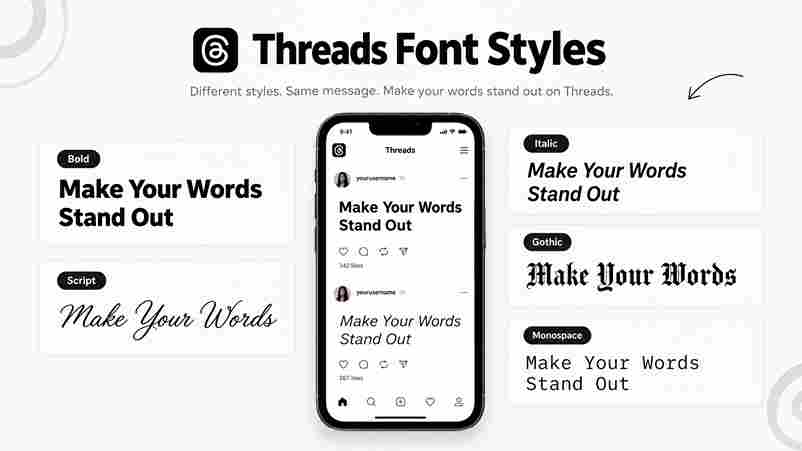
Threads font styles work best when each choice serves a clear purpose: short emphasis can spotlight a key phrase, while softer than bold styling keeps reflective comments noticeable without making every line compete for attention.
For a distinctive profile, flowing handwritten calligraphy adds personality; dense medieval appearance brings dramatic contrast, while same width lettering suits technical notes. Preview each option on mobile before using it in a public post online.
Bold
Bold styling can help a Threads post communicate hierarchy before readers commit to the full message. I use it for a key phrase, launch announcement, or short profile promise, keeping surrounding text ordinary and clear.
On compact screens, emphasis should point readers toward the core message, not decorate every line. Preview the copied result before publishing; excessive styling can slow scanning and make ordinary content easier to understand while scrolling.
Italic
An italic style can soften a creator’s profile text without changing its message. I use it for brief reflections, subtle emphasis, or soft branding, especially when a busy feed makes plain formatting feel ordinary online.
Keep italic lettering selective: a short closing signature or quote may feel expressive, while long passages tire readers. Preview the result on mobile, preserve readable wording, and leave key details in standard characters when possible.
Script / Italic And Script
Script and italic styles work best when they clarify tone rather than decorate every sentence. I use script styling for a brief signature, while italic Unicode characters can add subtle emphasis to a quoted phrase.
Because decorative letters may display unevenly, preview the result before publishing. A true italic font differs from italic Unicode characters; reserve these for commentary, where they draw the eye without shouting over the main message.
Also Read: Threads (social network)
Fraktur / Gothic
Fraktur and Gothic lettering can give a Threads display name a medieval, dramatic character, but the effect depends on legibility, spacing, and whether unfamiliar characters render consistently across phones and operating systems for every viewer.
Use Fraktur or Gothic lettering selectively for names or brief identity accents; reserve ordinary lettering for essential details, because ornate forms may confuse readers, weaken recognition, or display as empty boxes on certain mobile devices.
Monospace
Monospace gives each character equal width, creating a tidy, technical rhythm suited to a creator note, compact labels, and profile names. On Threads, this restrained treatment helps keep profile details clear online without unnecessary decoration.
Use monospace for short identity lines or deliberate labels, not entire captions; repetitive fixed-width letters can feel dense on small screens and distract from the message readers came to find quickly in a noisy feed.
Best Uses / High-Impact Use Cases For Threads Fonts
For creators, the strongest Threads fonts are not everywhere; they belong on podcast releases, product drops, and a clear version label. Reserve decoration for details readers should notice first during today’s crowded launch moments online.
For daily discussion, use clean monospace letters for technical labels and short styled text for one bold word or action cue; compare readability on mobile before reusing the treatment across replies and compact profile fields.
Thread Hooks
On Threads, a useful post hook earns attention before decoration does. Put the clearest promise first, then use strong hooks with selective Unicode styling to signal value without making the opening difficult to scan quickly.
Test each conversation hook in a text-only preview, especially on mobile; the best line creates curiosity, states a real benefit, and lets readers understand the topic even when decorative characters render inconsistently across common devices.
Creator Bios
Creator bios work best when a creator tagline explains the promise quickly, while readable Unicode adds a subtle visual cue. Keep the role clear, then use one distinctive phrase to invite suitable readers to connect.
On Threads, pair social bios with a concise bio line that reflects your community role; test the profile name on a phone, and reserve decorative characters for one accent so your message remains legible everywhere.
Numbered Carousels
For numbered carousels, I keep each slide’s opening idea brief, then use visual emphasis to signal its role. Clear labels help creators guide readers without cluttering the message or weakening the point for busy audiences.
A useful sequence can spotlight posts, separate related replies, and place a product drop after context. I preview every panel on mobile, keeping wording readable as people move quickly through the carousel at a glance.
Creator Launches
Before launch, I test launch hooks in a concise creator bio and keep product names easy to scan. A bold word can spotlight the release without overwhelming the post. Keep launch details timely and recognizable.
For a first-day rollout, pair launch dates with concise notes; preserve clear writing, readable details, and a strong brand voice across posts and replies without adding decorative clutter unnecessarily for busy followers checking daily updates.
Reply Pinning
Pinning a helpful reply keeps essential context visible as discussions grow. Use pinned replies for answers that clarify your post, add a key update, or guide newcomers through long reply chains without confusion or repetition.
Choose a reply that answers recurring questions, then pin it so visitors can find the explanation before adding quote posts or sending direct messages. Confirm the platform accepts text exactly as displayed across common devices.
Threads Bio Fonts
A Threads bio works best when plain Unicode supports your name, concise slogans, and thoughtful brand accents; use a styled bio line to establish identity without crowding the limited real estate available in your profile.
Before you copy a style, edit Threads profile details in the bio field, then carefully preview the same copied text beside posts; keep roles recognizable, and use other social bios consistently when adapting your brand.
Display Name Styles
A polished display name can introduce your founder title without making the profile feel crowded. Choose one style that suits your voice, then check how its characters appear beside replies and mentions on different screens.
A concise newsletter hook may support a creator’s name, but decoration should never replace clear wording. I recommend comparing plain and stylized versions in the actual Threads profile before settling on one for daily use.
Post And Reply Emphasis
A short bold hook can earn attention without making an update feel cluttered. Keep the emphasis focused on one clear point, then let surrounding language explain the idea clearly and in a direct voice online.
In replies, an italic hook can clarify what deserves a response, while excessive styling risks screaming for notice. Reserve accents for useful details inside a long thread where readers keep scrolling back for details later.
Creator And Brand Identity
A creator’s identity on Threads depends less on heavy decoration than on a clear focus: brand-aligned choices help readers recognize the account across a busy feed, even when posts compete for attention in crowded timelines.
A useful creator title sets expectations, while account voice keeps captions, replies, and profile details aligned. Pairing brand identity with brand aesthetics makes style recognizable without turning every message into decorative text or weakening readability.
Best Practices / Tips For Using Threads Fonts
On Threads, make short post highlights purposeful rather than decorative everywhere; use consistent wording across channels, keep Topic Tags easy to recognize, and place your message before ornamental styling to preserve clarity during every review.
Check the 500 character limit, preview Unicode-styled characters on mobile, and keep URLs unmodified because styled characters break link detection. Reserve decorative styling for emphasis, not essential details or accessibility for readers using assistive technologies.
Respect The 500 Character Limit
Threads counts every visible character, so a decorative style can use space faster than expected. Plan your message before you copy, especially when a styled Unicode block replaces letters inside a profile, reply, or post.
For reliability, test the finished wording in normal text first, then compare its count after styling; keep short phrases prominent and leave long paragraphs plain for easier reading before posting from your phone or desktop.
Think About Screen Reader Accessibility
During a review, screen readers may announce fancy text in unexpected ways, sometimes speaking letter by letter instead of conveying a sentence naturally. Keep critical information in plain text with standard wording for key warnings.
Before publishing, test Unicode characters with assistive technology, favor a simpler style, and reserve styled text for brief emphasis rather than essential instructions. Check whether chosen glyphs sound aloud on your own device before sharing.
Protect Topic Tag Visibility
Styled text can draw visual attention, but keep the topic phrase recognizable. Use standard characters in the hashtag itself, so readers and Threads can connect your post with the intended discussion without confusing alternate glyphs.
Before publishing, check that clear content surrounds the Topic Tag and explains the subject naturally. Since Threads indexes content, decorative letters should support meaning, not become a supposed ranking shortcut that guarantees reach or discovery.
Avoid Styling Links
Keep links visually simple when using styled text on Threads. Decorative Unicode text may alter how an address looks, reduce trust, or make readers unsure where a destination begins and ends, especially on mobile phones.
Use a clear, ordinary URL beside concise context instead of decorating every character. Check the preview before publishing, because platform-specific formatting can break consistency and hide the destination from readers on different devices and apps.
Match Styling To Your Brand
Brand consistency works best when visual choices support identity rather than competing with it. Choose strong simple styles for regular updates, then reserve decorative symbols for announcements, launches, or occasional moments that deserve extra attention.
Consistency is not sameness: a creator can vary emphasis while keeping a stable visual signature. Test a restrained treatment on announcements first, then repeat it for lasting brand recognition over time across recurring public touchpoints.
How Threads Renders Styled Text
A Threads font generator usually changes characters before posting, rather than applying a new typeface. Many stylized fonts are actually real Unicode character sequences, so supported devices display their shapes differently across devices and apps.
Unlike ordinary rich-text controls, Unicode styles travel as characters when copied. A Unicode font generator may create similar Unicode characters, but Threads still treats them as text; font files are not embedded in each post.
Threads Fonts Vs Normal Formatting
Normal text preserves familiar letter shapes and remains easier to search, quote, and read aloud. Stylized alternatives change the underlying characters, not just their appearance, so actual characters matter for search and accessibility on Threads.
Native formatting changes presentation while keeping the original wording intact; pasted Unicode styles replace ordinary text with separate symbols. For headlines, highlight a word sparingly, then leave surrounding copy simple for reliable reading on mobile.
Unicode Fonts
Unicode styling doesn’t install a typeface; it substitutes characters from Unicode’s extended repertoire, so fancy Unicode letters may appear heavier, slanted, or decorative while remaining text characters rather than images or font files in feeds.
Because rendering depends on device support, Mathematical Alphanumeric Symbols block characters can display inconsistently; test Unicode fonts across Android and iOS, keep wording in standard text, and treat styling as a portable enhancement, not formatting.
Normal Text
Normal text remains the clearest baseline for a Threads post because readers recognize familiar lettering immediately. A generator can add visual personality, but ordinary characters often communicate ideas more reliably across devices and accessibility tools.
Use stylized text formats selectively: reserve visual distinctiveness for brief emphasis, while keeping everyday explanations consistently readable. Before posting, compare the copied result on mobile and desktop, since Unicode styles may appear differently between apps.
Images
Images can demonstrate how typographic styles change the mood of a Threads post, but an image upload should complement the caption rather than replace readable text or obscure the main message for mobile viewers everywhere.
Preview each graphic before sharing, checking contrast, spacing, and legibility at phone size. Consistent colors and visual precision help maintain content visibility, especially when a decorative headline sits beside a photo in busy social feeds.
Why Creators Need A Threads Font Generator
A crowded creator feed rewards clarity, but recognizable styling can still create a competitive advantage. A Threads font generator lets creators test emphasis and specialized typography before using it across profiles and public posts consistently.
For launches, replies, or recurring series, creators can compare how engagement metrics respond to readable accents rather than decoration alone. The aim is intentional recognition: make a message easier to notice, not harder to understand.
Small Caps For Compact Bios
Compact capitals can conserve space when a profile must communicate a role, niche, or promise in one glance. On mobile, restrained letterforms distinguish a label from surrounding text without overwhelming readers on small screens quickly.
I recommend keeping the styling limited to a name, specialty, or two-word descriptor; continuous compact capitals lose their advantage. Preview profile fields on mobile, where narrow layouts magnify spacing and legibility issues before sharing publicly.
Light Symbols And Wrappers
Minimal symbols serve as separators, not decoration piled onto every word; marks frame a key phrase, signal a section change, and preserve space for the message instead of competing with content on a small screen.
Use a single dot, bracket, or light divider beside creator labels rather than surrounding every sentence. Test pasted text in the app because characters may shift, combine oddly, or sometimes become boxes across multiple devices.
Is The Threads Font Generator Free?
Many font generator tools offer free basic Threads styling: type your text, preview designs, and copy results without installing a custom font file. Check each site’s terms; optional paid features and usage limits sometimes apply.
Will Unicode Fonts Work On Android And iOS / Mobile?
These Unicode character styles work on Android and iOS because they rely on text rather than downloaded typefaces; however, older systems, limited character support, or software differences may cause symbols to display inconsistently across devices.
Can I Use Styled Text In Threads Posts, Replies, And Direct Messages?
Yes, styled Unicode text can appear in public posts, replies, and direct messages, but test each placement first. I usually reserve decorative characters for a short emphasized line; ordinary wording keeps longer discussions readable overall.
Can I Use These Fonts For A Threads Bio?
Yes, a Threads bio can use styled Unicode characters, but I recommend short and intentional text: unusual lettering can highlight your identity while keeping your message clear across phones, themes, and assistive tools for readers.
Why Does Text Look Like Boxes On Some Phones?
Text may appear as boxes when a phone lacks glyphs needed to display particular Unicode characters. Update devices, test common Unicode styles, and replace unsupported symbols with plain text if fallback boxes persist after updates.