
Threads Fonts Generator – Create Cool Fonts to Copy & Paste
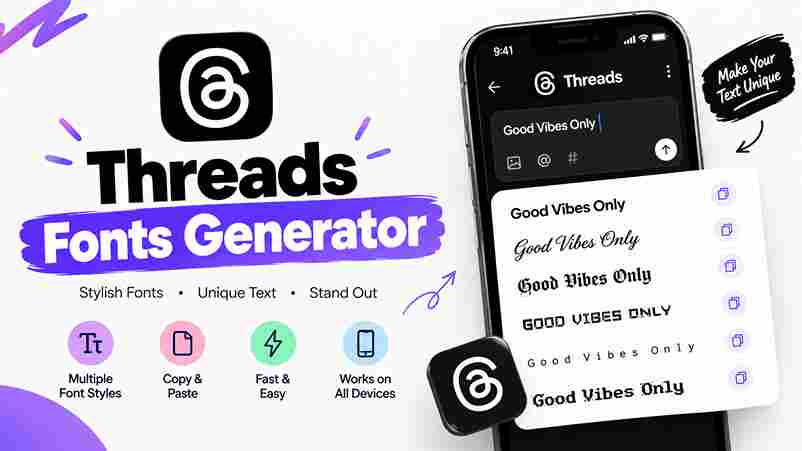
T Threads Fonts Generator Make your text stand out. Copy, paste & post. 100% FREE Enter your text Hello Threads! 13 / 500 characters Clear text Try: Hello Threads! Follow your dreams Creative text Font styles Choose your favorite look and copy it. Copy all styles ⌕ All styles Popular Clean Fancy Decorative ✦ Ready for Threads Copy any style and paste it into your Threads bio, display name, post or reply. Your text stays in your browser. Note: These are Unicode text characters, not installed fonts. Some styles may display differently across devices. A no-cost typographic tool creates visual differentiation on the Threads platform, letting creators compare Unicode styles before choosing text that suits profile and audience without requiring installed font files for their own social presence online. The useful result is not decoration alone: thoughtful emphasis can establish tone, reinforce a launch headline, or make profile lines more distinctive, while simple readable styles keep the message clear in fast-moving social feeds too. What Is A Threads Font Generator? A Threads font generator transforms text into visually distinctive content using alternative Unicode characters. You type your text, select a style, and preview how it may appear on your Threads profile before sharing a post. A free Unicode styling tool can add a scroll-stopping moment to a long-form thread, yet the Threads web client may render glyphs differently; distinguish these from native bold and keep essential meaning in words alone. How To Use The Threads Font Generator First, enter your Threads voice into the text field, whether shaping a bio line, profile opener, or brief reply. Watch available styles update live while comparing options before choosing a presentation that fits your message. Then pick a style that suits the message, copy the result, and paste it into Threads. Preview it on mobile and desktop before publishing, because some decorative Unicode characters may render differently across devices sometimes. Type Your Text Use the input box to type text you intend to share, whether it belongs in a bio, post, reply, or short announcement. Clear wording gives the generator a useful basis for comparing styles before publication. Before choosing effects, enter your input text as ordinary wording; then try Unicode options and compare the result. Copy and paste only after checking that names, punctuation, and the intended meaning remain clear on screen. Also Read: Twitter Font Generator: Bold Magic Pick A Style Choose clean fancy styles only after deciding what the post must communicate. For tech posts, restrained decoration keeps instructions easy to follow, while thoughtful styling helps readers notice the core idea rather than decoration alone. Use bold for emphasis when a short phrase needs priority; italic for commentary can soften an aside. Keep compact profile labels consistent with creator branding, and preview your chosen treatment on your device before publishing. Paste Into Threads After you choose a style, use the generator to copy the result, then paste directly into your Threads post, reply, or bio field. Preview the characters before publishing to confirm they display correctly on mobile. For a display name, test several options in the preview and compare them at normal phone size. If letters appear as boxes, switch to a simpler choice before you save or share your final text. Enter Your Profile Or Post Text When you enter your profile or post text, keep the message complete before decorating it; styling holds together more naturally when the wording is direct and the purpose is easy to recognize at a glance. Do not assume Threads would remove your wording; pasted characters can remain visible, although their appearance varies by device. Preview the result and confirm names, links, and the message stay recognizable before sharing it widely. Choose A Style That Matches The Context Choose a style according to each Threads update: editorial text can feel considered, while one or two variants keep a profile coherent. Use decorative treatment only when it strengthens the message and remains easily scannable. Match tone with returning followers and keep a clear visual cue so people can recognize posts at a glance. Styling should support the message, not compete with clarity or make updates harder to follow naturally. Copy, Paste, And Preview On Threads Choose a style, copy output, then paste it into your Threads composer. Check the preview before publishing because unusual Unicode characters can render differently on mobile phones, tablets, and computers before sending it to everyone. Review the post for broken links, altered mentions, and missing tags; preserve a plain text version of essential details. If characters look unfamiliar, choose a simpler style and preview the result again before you publish. Threads Font Styles Threads font styles work best when each choice serves a clear purpose: short emphasis can spotlight a key phrase, while softer than bold styling keeps reflective comments noticeable without making every line compete for attention. For a distinctive profile, flowing handwritten calligraphy adds personality; dense medieval appearance brings dramatic contrast, while same width lettering suits technical notes. Preview each option on mobile before using it in a public post online. Bold Bold styling can help a Threads post communicate hierarchy before readers commit to the full message. I use it for a key phrase, launch announcement, or short profile promise, keeping surrounding text ordinary and clear. On compact screens, emphasis should point readers toward the core message, not decorate every line. Preview the copied result before publishing; excessive styling can slow scanning and make ordinary content easier to understand while scrolling. Italic An italic style can soften a creator’s profile text without changing its message. I use it for brief reflections, subtle emphasis, or soft branding, especially when a busy feed makes plain formatting feel ordinary online. Keep italic lettering selective: a short closing signature or quote may feel expressive, while long passages tire readers. Preview the result on mobile, preserve readable wording, and leave key details in standard characters when possible. Script / Italic And Script Script and italic styles work best when … Read more