
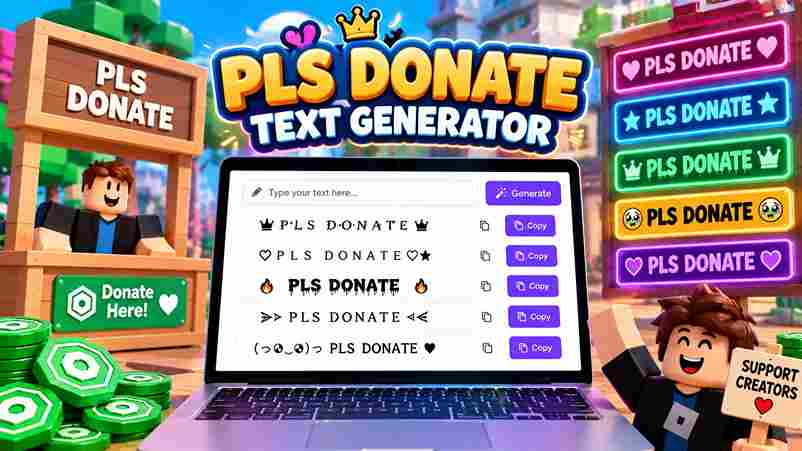
PLS DONATE Text Generator
Create colorful Roblox booth text, preview your style, and copy the formatted code.
This is a browser preview, not an exact in-game rendering. Font, size, and outline appearance may differ in Roblox.
Compatibility note: Roblox supports rich-text tags in suitable UI elements, but the PLS DONATE booth editor may handle specific tags differently. Test the output in-game. If a style fails, try solid color and bold first. Read Roblox rich-text documentation.
A PLS DONATE text generator helps Roblox players turn a simple booth message into eye-catching text without learning rich text code. Choose colored text, adjust the style, then use a straightforward copy-and-paste flow for donations.
For a busy PLS DONATE game server, a clear sign text can stand out better than clutter. Preview rainbow text, test legibility, and copy and paste the result into your booth before publishing it online.
Table of Contents
What Is A PLS DONATE Text Generator?
A PLS DONATE text generator lets Roblox players personalize a donation stand with colorful text and custom messages. It turns a request into ready-made code, helping newcomers create a sign without learning markup or programming.
A generator assembles rich-text-style markup for the PLS DONATE renderer; text labels help players compare font and color treatments before copying a booth message. Styling may change in-game, so a preview and test remain essential.
How It Works (Roblox Rich Text)
Roblox styling usually arrives as rich-text-style code: formatting tags surround a message and tell the booth how to display color, emphasis, or other supported effects. The generator creates generated HTML without requiring manual coding skills.
After pasting, inspect the preview and test the real booth: Roblox may render differently than a browser. Keep the destination in mind, because readability, supported effects, and the game’s copy limit matter more than decoration.
How to Use the Generator
Enter a booth message in the text field, then adjust the style and formatting options. Check the live result carefully before selecting Copy HTML for your PLS DONATE stand and confirm the wording remains readable.
If filtering alters the rich text, simplify the message and try another option. Paste the result into the game, then inspect the sign in a live session before relying on its appearance on your device.
Also Read: Fortnite Font Generator – Create Cool Gaming Fonts
How to Copy and Paste the Code Into Your PLS DONATE Booth
Choose a font, set color, outline, stroke color, and Stroke Thickness, then check the sign preview. Keep Booth Text concise; use the emoji picker sparingly and watch the Code counter before copying your final message.
Press Copy Code to retrieve the Copy HTML output, then paste it into your booth’s text field in Roblox. If the disabled button appears, shorten the message or remove gradient effects and retry in-game carefully.
Color, Rainbow, Outline & Font Options
Choose single PLS DONATE text color when your message needs a clean visual anchor; multi-color letters suit playful booths, while a full rainbow works best when every word remains distinct against nearby scenery and lighting.
Set Solid mode for steady fills, try gradient modes for a gradual blend, or use split-color modes to distinguish key words. Adjust stroke hex color and a 3px border, then preview the sign in-game carefully.
PLS DONATE Color Text & Sign Ideas
Use a solid color on any background, then add a black outline to keep the message distinct. Choose bold text and check the font preview stays readable before you copy it into the Roblox game.
For a lively sign, test rainbow letters, smooth fade, or split-color modes; keep grouped color bands simple and check in-game support, because generated markup may render differently than a browser preview on smaller screens, too.
Tune The Controls That Appear In The Generated HTML
The controls should represent real formatting choices, not hidden promises. Set HTML weight deliberately, then generate code and examine its tags before copying the result into Roblox; this quick check prevents mismatched expectations during testing.
Use selected text color sparingly, keep the 0-to-12-pixel stroke readable, and respect the code limit. When options compete for space, remove decorative settings first, then test the booth on your usual device before sharing it.
Why Styling Your Text Is So Important
Players often decide whether to donate before reading every line, so attention depends on a clear message, not decoration alone. A short request with a clear goal can make your booth instantly understandable from afar.
Personally, I favor readable lettering, one bright color, and one specific message over crowded effects; bold styling should emphasize the request, while funny wording can give visitors a reason to remember your stand later too.
Character Limit
Character limits reward clarity over decoration: keep key words short, make the request readable from a distance, and avoid cramming every detail into one booth message. Players often decide before stopping to inspect a sign.
Use the character limit as a practical boundary, not a challenge. Enter your draft in the Text field, tap shorten message, then run an in-game test to catch awkward wrapping or filtering before you publish.
PLS DONATE Text Ideas
A memorable booth message shows your personality quickly. Try “Feed the broke Robloxian” or “My wallet is emptier than this stand” to add humor and give passing players a clear reason to smile before donating.
For a playful twist, promise a happy dance after a donation, or use “Be the hero this stand deserves.” Keep the joke short, readable, and true to your personality, so visitors instantly understand the vibe.
Funny PLS DONATE Text Ideas
Funny booth messages can attract attention without sounding demanding. Try playful lines like “Every Robux counts,” “Hello friend,” or “Tips keep the dream alive.” Keep jokes friendly, readable, and suitable for Roblox players.
For memorable PLS DONATE text ideas, combine humor with a clear goal. A message such as “Saving up for my dream pet” adds personality, while “First donor gets a shoutout” encourages interaction without promising unrealistic rewards.
PLS DONATE Tips / Tips For The Best Text
For each passing player, one clear goal beats a long pitch. Write Goal: 50 Robux only when accurate, then add a brief note and keep the message readable across a busy server for quick scanning.
Test the sign in the booth preview on a phone and desktop; contrast matters more than decoration. Choose short clear text, check the live preview, and copy the code on small screens before you share.
How To Craft A Booth Sign That Actually Gets Noticed
A booth sign earns attention when its message is clear before its decoration. Keep the request short, choose a readable background, and give visitors one clear goal instead of stacking several requests into one message.
In a busy server, a dark outline helps words separate from colorful effects; add a fun line, then test in-game at normal viewing distance. If long text shrinks, trim it before adding more decoration again.
Quick Tips For Writing Booth Text
Start with one understandable request and a clear goal of 10 Robux; keep the short message focused on what donations support. Plain wording usually beats crowded decoration because passing players need to grasp it quickly.
Use a readable line, limit repeated emoji, and check the browser preview before you copy the code. Keep styling secondary to meaning, then verify in-game on your device; small, clear signs often win attention consistently.
Build The Booth Message Before Styling It
Before choosing effects or decoration, write the message in plain text. Decide your goal, name the reason for donations, and keep important words near the beginning so passing players understand the request quickly from afar.
Test the wording before adding effects: replace a vague request with one specific purpose, such as saving for a gamepass. A clear sign fits limited space and stays readable during busy sessions across the booth.
Will It Work In Roblox? / Limits & Testing
Roblox compatibility depends on what the booth editor accepts, not only what the generator displays. Paste the code into a test booth, then inspect the live result during gameplay before relying on a style choice.
Styled text can fall back, wrap differently, or lose effects when Roblox applies its final renderer and content filters. Check the booth on your device; a browser preview is useful, but never guarantees identical display.
Understand The Roblox And PLS DONATE Limits
Do not assume aesthetic fonts or Unicode letters will display identically: Roblox filters text, account settings, and booth limits can change results. Check your PLS DONATE stand text in-game before publishing on your own device.
Long messages, bold letters, bright colors, and Roblox rich text may look different under lighting; younger accounts can encounter blocked phrases, so preview the final booth and use clean wording before sharing it with players.
Judge The Sign In The Booth Preview, Not The Picker Alone
Treat the planning view as a guide, not proof of the final result. Paste the code into your booth, then inspect its display under real in-game lighting before deciding whether the styling works for players.
Treat the preview as inspection only: font fallback, stroke, or background may change final font support and final in-game text size. Check where players walk past; adjust if letters merge at a typical viewing distance.
Test The Copied Sign In A Repeatable Way
Before publishing, paste the copied HTML into the booth and compare actual words with your draft. Check whether line breaks remain clear, the sign board stays readable, and long phrases crowd available space after formatting.
Repeat the check with six sample messages, including short goals and longer requests. Review the inspection view, confirm the layout is calibrated, and run in-game tests after saving; the picker alone cannot prove consistency reliably.
PLS DONATE Text Not Showing On Your Booth? Turn On Experience Chat
If your PLS DONATE booth text looks blank, check the sign itself before changing styles. Experience Chat controls in-game messaging, not booth signage, so switching it on may not repair a missing sign by itself.
If text still disappears, test a shorter plain message before restoring Roblox rich text; chat filtering may alter unsupported content, while age-check or privacy settings can limit chat without guaranteeing signage displays correctly on screen.
What Is Saved And What Stays Private
A Save Message option may preserve your draft, while local storage or browser data can keep text on the same device; these features are different from a guarantee of private, permanent storage for every visit.
For privacy, avoid saving account details, passwords, or private contact information inside booth copy. On a shared device, review the current message text and remove drafts you no longer need before leaving the game session.
Bottom Line
At its best, a PLS DONATE text generator helps turn a simple booth message into a clear reason to donate. Choose a readable style, then copy and paste the finished code onto the Roblox platform.
Before publishing, inspect the Generated HTML box, check the in-game limit, and test legibility on your device. Keep the draft on the same device when relying on local storage; never enter private information or passwords.
PLS DONATE Rich Text Code Example (Font, Color & Stroke Tags)
A useful rich text code example is <font face=”Arial”><font color=”#FFD700″><font size=”24″><stroke color=”#111111″><b>Support me</b></stroke></font></font></font>: outlined text improves contrast, while concise booth wording helps players read it before pasting markup during busy public sessions from far away across the map clearly.
For emphasis, nest weight 700 or italic stroke deliberately, and adjust stroke 0 to 12 pixels only when the sign stays legible; preview the PLS DONATE color text code in-game because unsupported markup may change.
What Is A Good Text To Use In PLS DONATE?
Effective PLS DONATE text ideas pair Goal 50 Robux with bright colors and a dark outline. Keep the message easy to read; Every donation helps invites support without pressuring visitors on a busy public server.
How Do I Use The Text In Roblox?
Join PLS DONATE, claim an unclaimed booth, then press E to open Edit Booth. Paste the raw code into the text box with Ctrl+V, check the sign above your booth, then close Edit Booth safely.
Why Does My Text Look A Little Different In The Roblox Game?
Your booth may look different because this tool approximates the look rather than reproducing the exact Roblox font. Roblox fonts have varying in-game support, and read-only styling or game updates can change spacing after pasting.
How Do I Make Rainbow Or Colored Text?
To create rainbow or colored effects, use the font and text generator to produce HTML with a color tag, then preview the text color in your booth. Contrast matters more than adding every available shade.
Where Are All The Other Cool Roblox Fonts?
Other cool Roblox fonts often come from community-made experiences, avatar tools, and Unicode generators rather than this booth editor. Its 52 font names are predefined, so explore other options elsewhere for creative text beyond booths.
5 thoughts on “Pls Donate Text Generator (Copy & Paste) | Fast & Free”